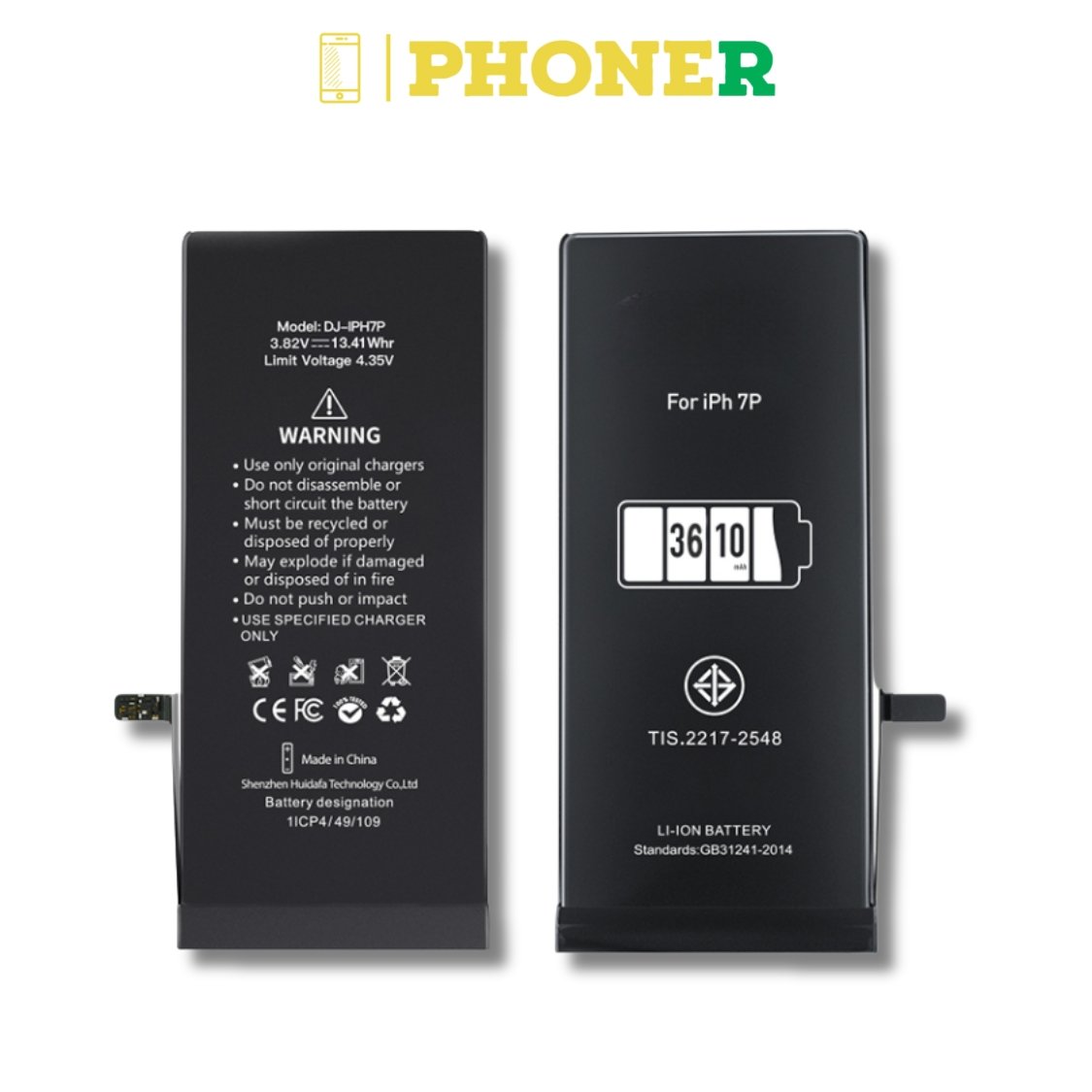
FAQs (Frequently Asked Questions)
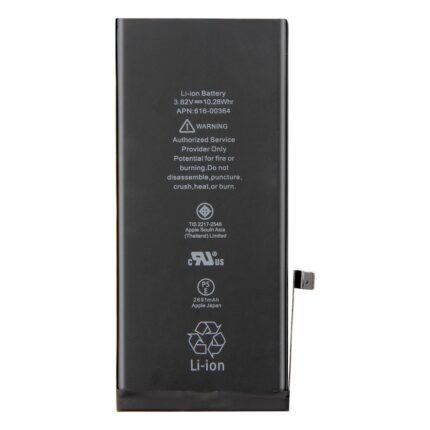
Q1: Is the Mobile Battery for iPhone 7 compatible with other iPhone models?
A1: Our Mobile Battery is specifically designed for the iPhone 7 model. While it may physically fit into other iPhone models, we recommend using it only with the iPhone 7 for optimal performance and compatibility.
Q2: How long does it take to install the Mobile Battery for iPhone 7?
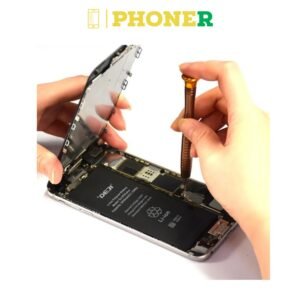
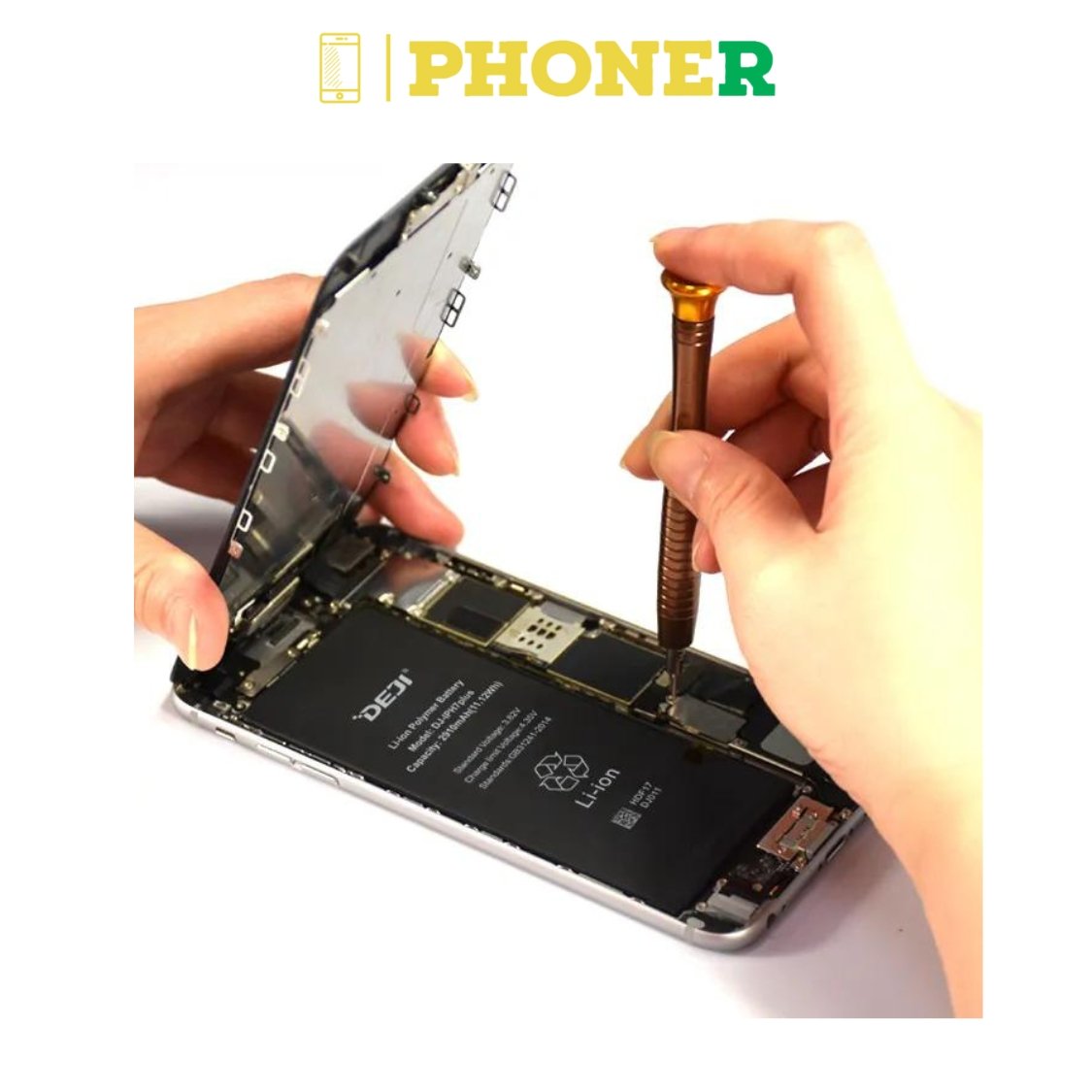
A2: The installation process typically takes around 20-30 minutes, depending on your level of experience with electronics. With our easy-to-follow instructions, even beginners can successfully replace their iPhone 7 battery with minimal hassle.
Q3: Will replacing my iPhone 7 battery void my warranty?
A3: The warranty on your iPhone 7 may be voided if the battery replacement is not performed by an authorized service provider. However, our Mobile Battery for iPhone 7 comes with a 6-month guarantee, ensuring quality and performance.
Q4: Can I still use my iPhone 7 while the battery is being replaced?
A4: We recommend powering off your iPhone 7 before replacing the battery to avoid any potential damage to the device. Once the replacement is complete, you can power it back on and resume normal usage.
Q5: How can I maximize the lifespan of my Mobile Battery for iPhone 7?
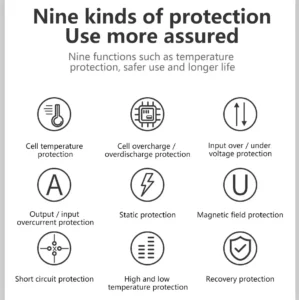
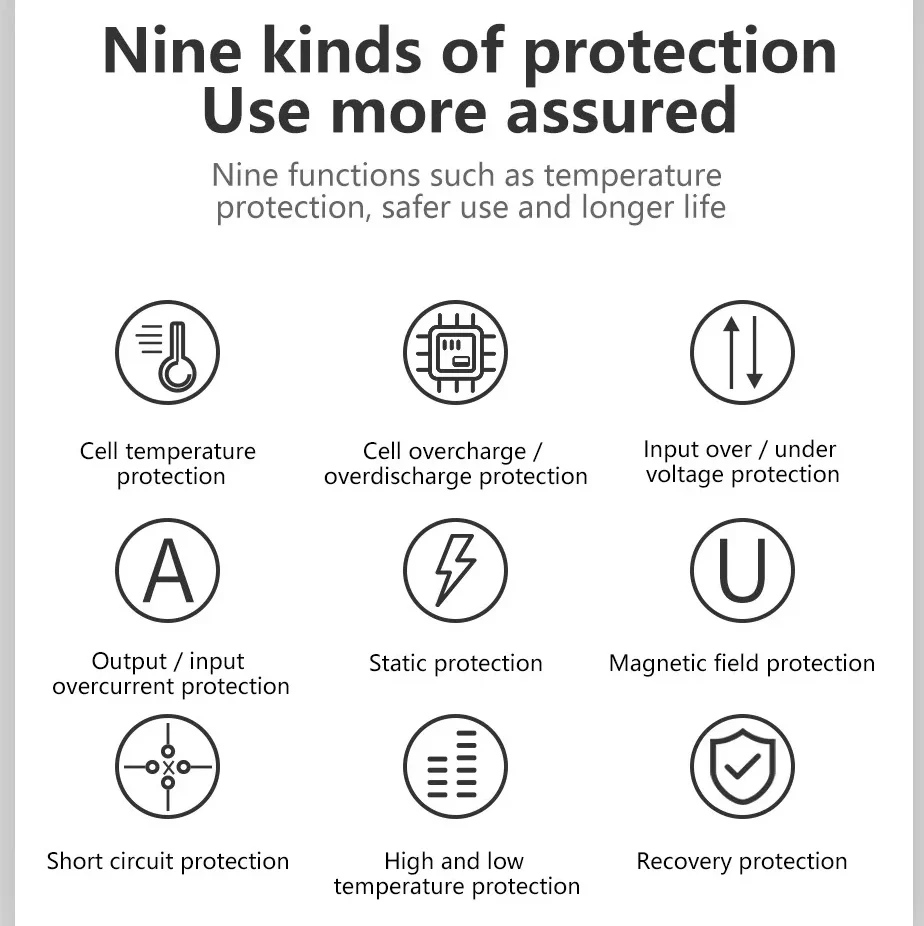
A5: To maximize the lifespan of your Mobile Battery, we recommend avoiding extreme temperatures, avoiding overcharging or fully draining the battery, and using reputable charging accessories.
Tips for Extending Battery Life on iPhone 7
1. Adjust Display Brightness
Lowering the brightness of your iPhone 7’s display can significantly reduce battery consumption. Consider adjusting the brightness settings to a level that is comfortable for your eyes while preserving battery life.
2. Enable Low Power Mode
Take advantage of the Low Power Mode feature on your iPhone 7 to extend battery life during times when you need it most. This feature automatically adjusts settings to minimize power consumption and can be activated from the Settings app.
3. Manage Background App Refresh
Limiting background app refresh can help conserve battery life by preventing apps from continuously updating in the background. You can manage background app refresh settings for individual apps in the Settings app under General > Background App Refresh.
4. Disable Location Services
Some apps use location services in the background, draining your iPhone 7’s battery even when not in use. Consider disabling location services for apps that don’t require them or use them sparingly to preserve battery life.
5. Update Software Regularly
Keeping your iPhone 7’s software up to date ensures that you have the latest performance optimizations and battery management features. Check for software updates regularly in the Settings app to ensure you’re running the latest version of iOS.
Troubleshooting Common Battery Issues on iPhone 7
Issue 1: Rapid Battery Drain
If you notice your iPhone 7’s battery draining rapidly, try restarting the device or checking for any background processes consuming excessive power. You can also try recalibrating the battery by fully charging and then fully draining it once a month.
Issue 2: Overheating During Charging
If your iPhone 7 overheats during charging, try using a different charging cable or adapter. Make sure you’re using genuine Apple accessories and avoid charging your device in direct sunlight or extreme temperatures.
Issue 3: Battery Percentage Inaccuracies
If the battery percentage on your iPhone 7 is inaccurate, try calibrating the battery by fully charging it, then using it until it shuts off due to low battery. Charge it back to 100% without interruption to recalibrate the battery indicator.
Conclusion
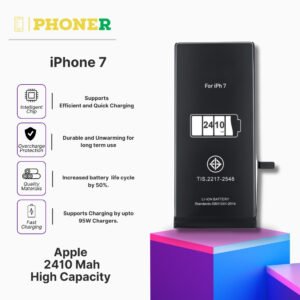
Our Mobile Battery for iPhone 7 offers the perfect solution for users experiencing battery issues with their devices. With advanced technology, high capacity, and easy installation, it’s the ideal choice for those looking to extend the lifespan of their iPhone 7. Don’t let battery problems hold you back – order your Mobile Battery today and enjoy the power of seamless performance.
Click here for iPhone 7 Mobile Specification
Click here for iPhone 7 Lcd Display Folder